Vista to 8
The themes work on X86 or X64, SP0, SP1, SP2.
The System files only work on Windows Vista SP1 x86.
Notice: This is only can be full use on Windows Vista SP1 x86.
NOTE: If you are getting error "Can't create file..." while saving a file after editing in resource hacker, that means you have edited and saved the same file in past and there is a backup file which need to be deleted before saving this file again. Go to the folder containing this file and you'll see a similar file having "_original" in its name. Delete it and try to save the file in resource hacker.
As you all know Windows 8 not yet been made.
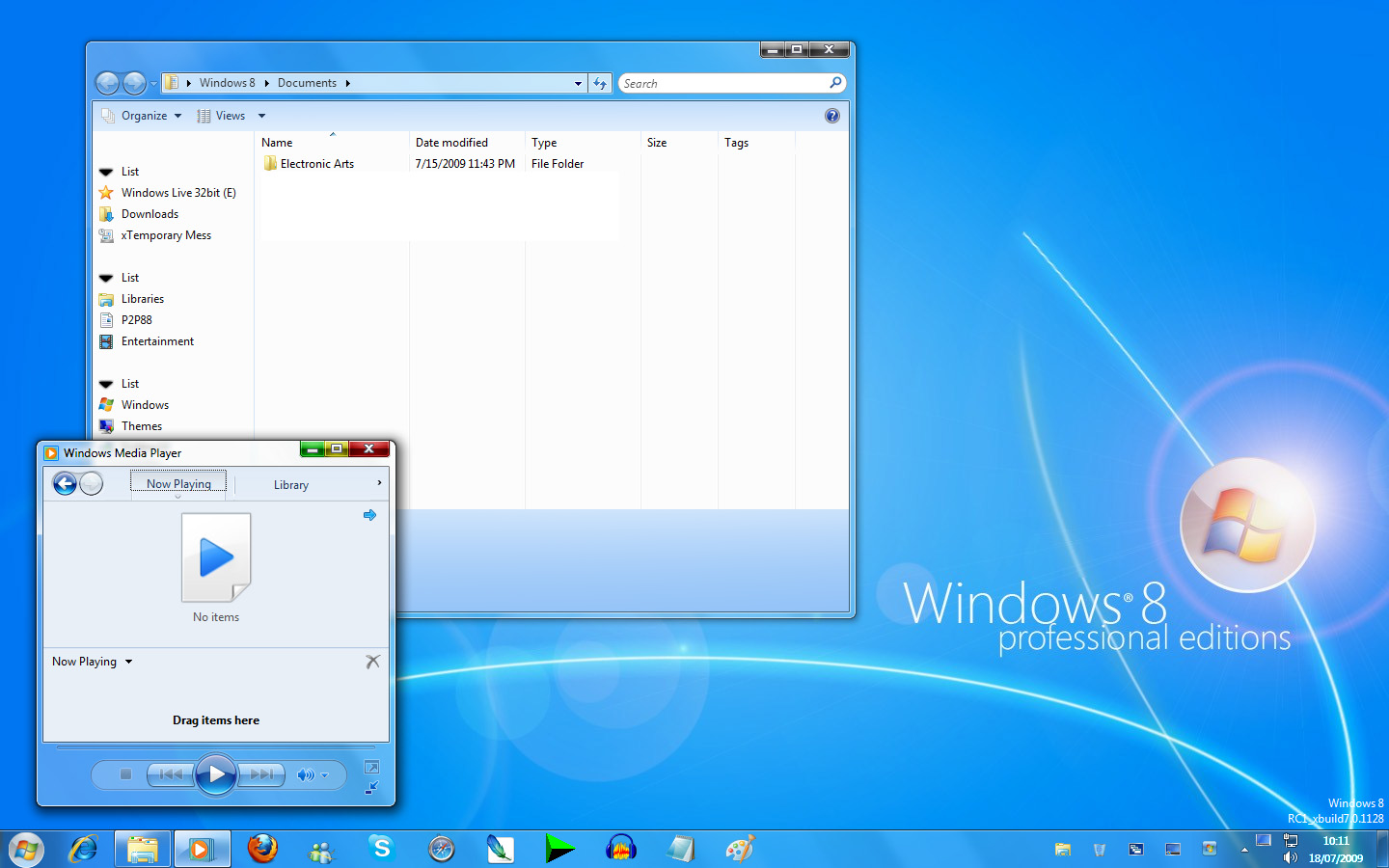
Windows 8 provides lots of new features along with a newly designed interface. It looks very similar to Windows Vista but there are many GUI changes like redesigned taskbar, Explorer, new boot screen and login screen, etc.
If you are still using Windows Vista but want to enjoy the new Windows 8 look, then this tutorial will definitely help you.
After following this tutorial, you'll get the same Windows 8 look in your Windows Vista. Following is a list of things which are going to be changed after following this tutorial:
* Windows Theme or Visual Style
* Login Screen or Welcome Screen
* Taskbar
* Taskbar clock, System try icon & Quick Launch
* Wallpapers
* About Windows Box
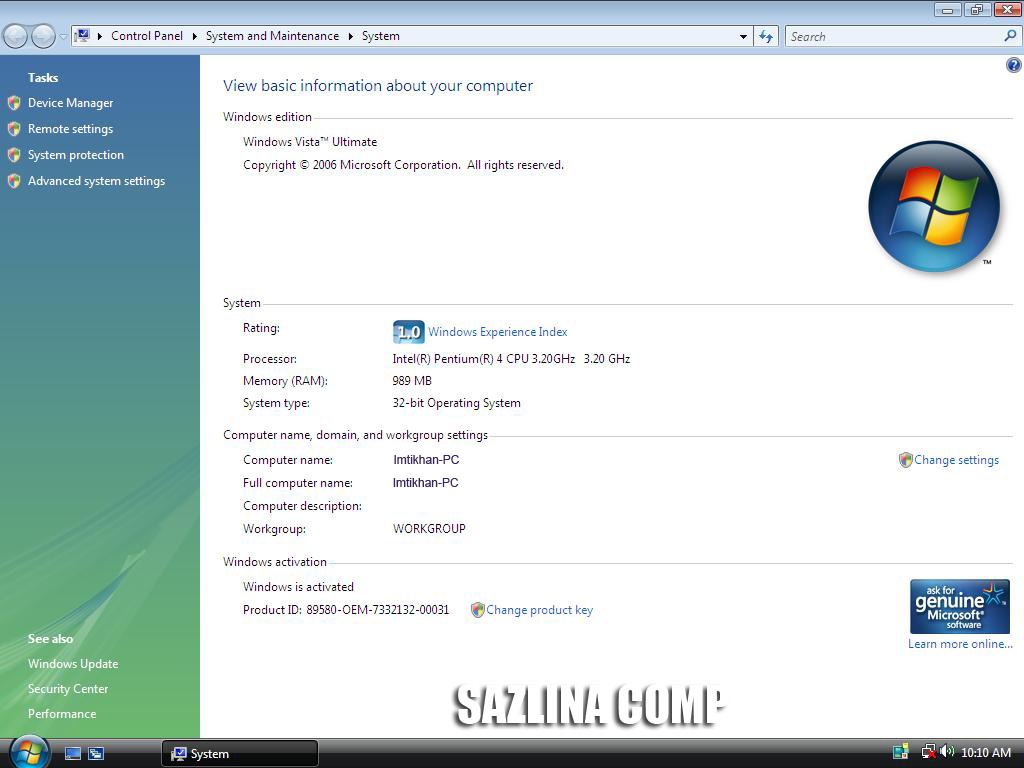
* System Properties
* Extra
So here we start our transformation tour:
PS: Please create a Restore point using "System Restore" before applying anything mentioned in this tutorial so that you can restore your system back to a working state if anything goes wrong.
1. Windows Theme or Visual Style:Windows 8 provides a new refreshing look which includes redesigned taskbar and start menu, Windows Explorer and a few other small changes.
Here a link:
DownloadTo use 3rd party themes.
Patch Uxthemes with Universal Themes Patches
Here a link :
Download2. Login Screen or Welcome Screen:Windows 8 login screen looks similar to Vista login screen except the new background image and the text displayed at bottom.
Here a link :
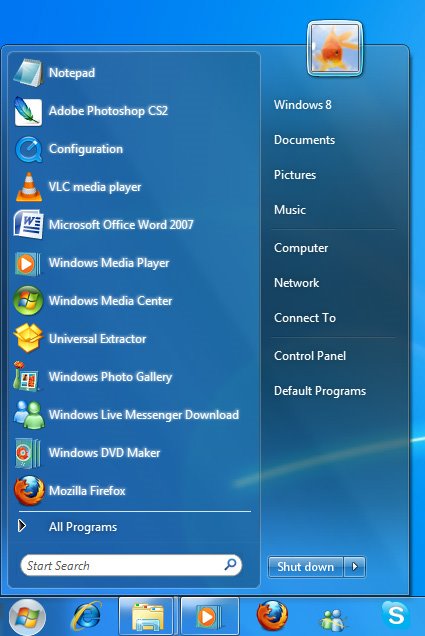
Download3. Taskbar(Superbar):Windows 8 taskbar has been highly redesigned it look like Winodws 7 taskbar. It doesn't show opened program's name in their taskbar buttons, instead it only shows their icons. Also the taskbar buttons are a bit large in their size.
Windows 8 taskbar also allows you to move taskbar buttons to change their positions, Same as Windows 7 taskbar.
Windows 8 taskbar also can be arrange in the pinned mode like Windows 7.
Has improved the taskbar preview to.
Here a link :
Download(ViGlance, Thanks to http://Lee-soft.com)
4. Taskbar clock, System try icon & Quick Launch:Windows 8 improved the clock based on Windows 7 clock
New smart System Tray, Quick Launch with xPeek.
Here a link :
Download(Tclock Lite, http://homepage1.nifty.com/kazubon/tclocklight/ )
5. Wallpapers:You can get Windows 8 wallpapers using following links.
Here a link :
Download6. About Windows Box:You'll need to change the top logo in the About Windows dialog box so that it can look like Windows 8:
Here a link :
Download7. System Properties:It will change look a like Windows 8 System properties.
Here a link :
Download8. Extra:Tools needed to change Ownership
Here a link :
DownloadPatch Uxthemes with Universal Themes Patches
Here a link :
Download







 Posts

